
Snapchat is one of the leading social media platforms that is used by millions of people globally for sharing their moments with their family and friends quickly and conveniently. The application is designed to be perfect and secure to use. Despite having so many advanced features, the application sometimes starts creating issues with its accessibility. The most annoying and most common issue that users face most of the time is “Snapchat Camera Black Screen”.

If you are also facing such an issue at this moment, don’t get worried, as you are not alone here who are going through this situation. It is a common issue that a lot of people face.
How to Fix “Snapchat Camera Having Black Screen“?
The guide is designed to provide absolute information on how to fix this annoying issue perfectly.
Solution 1: Check Camera Permission
If you are using an iOS 14 beta device, and you are facing a black screen issue on your Snapchat, the chances are quite high that your Snapchat’s camera permissions have been revoked due to the OS’s meticulous privacy features. One can easily check the camera permission option by:
- Go to the Settings option of your device and then scroll down the list to check installed apps over there.
- Tap on the Snapchat option from the given options and then check whether the toggle present adjacent to the Camera is turned on or not.
- In case you are using an Android device, you are also facing this annoying issue at this moment. You can also check for the permissions by:
- Go to the Settings option of your device and then tap on the Apps button.
- Now hit the three-dot buttons given there at the top right corner of your screen, and once done with it, open Permission Manager from there.
- On the completion of the above process successfully, now tap on the Camera button and then scroll down the list given to Snapchat.
- Once done, set it to the Allow option for fixing the Snapchat camera not working, black screen issue perfectly.
Read More: How To Fix Instagram Checkpoint Required Error
Solution 2: Clear Cache and Data
If you have tried the above solution given above but have not found the perfect solution yet, the chances are quite high that the data stored in your cache memory is creating an issue. One can clear the app’s data and cache to move smoothly throughout. One can easily clear the data and cache of Snapchat by:
- Go to the Settings option of your device.
- Now tap on the Apps button to move further with the process.
- The next thing you have to do in the league is to search for the Snapchat option.
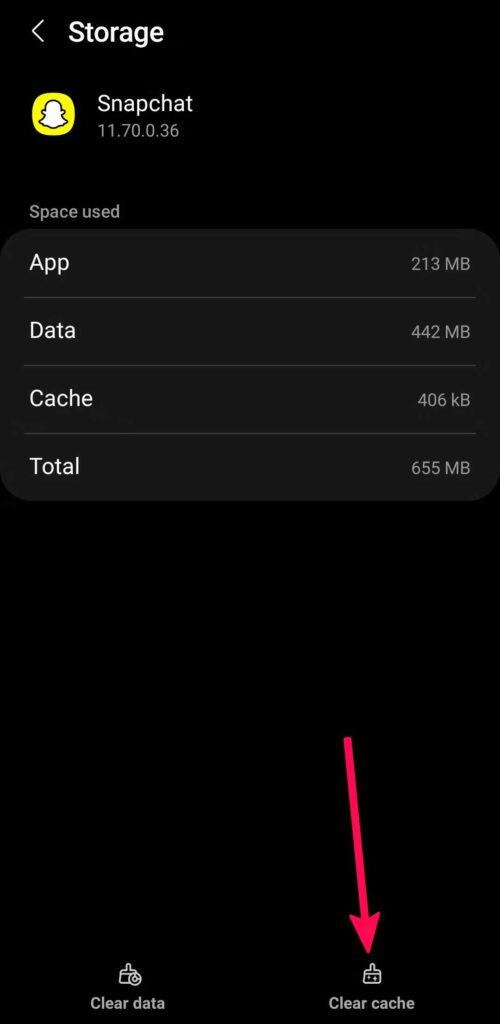
- Once you find it, tap on it followed by tapping on the Storage button.
- Now, tap on the Clear Data button followed by Clear Cache to ensure the smooth functioning of the Snapchat Camera.
Solution 3: Uninstall and Reinstall Snapchat
You can also go for uninstall and then reinstall Snapchat to enable its smooth functioning.
Solution 4: Factory Reset
If you have gone through all of the solutions given above but haven’t found the perfect solution for your issue, you can opt for the factory reset option on your device to change the settings to default. While doing so, just keep in mind that it will delete all of the data available on your device, so make sure you have enabled appropriate backup before going further with it.
FAQs: How to Fix the Snapchat Camera Not Working (Black Screen Issue)
What causes the Snapchat black screen camera issue?
Camera permission denial, app cache corruption, outdated app, or device camera conflicts. Example: the camera works in other apps but not Snapchat.
Does restarting the app fix the black screen?
Yes. Force-closing and reopening Snapchat clears temporary glitches. Example: black screen disappears after relaunch.
Can camera permissions cause this issue?
Yes. If camera access is denied, Snapchat shows a black screen. Example: enabling Camera permission in app settings fixes it.
Does clearing the cache help fix the black screen?
Yes. Clearing the cache removes corrupted temporary files. Example: Android cache clear restores camera preview.
Can outdated Snapchat versions cause camera problems?
Yes. Bugs in older versions break camera access. Example: updating the app fixes compatibility issues.
Does switching cameras fix the issue?
Sometimes. Switching between the front and rear cameras resets the camera feed. Example: rear camera loads when front camera fails.
Can other apps block Snapchat’s camera?
Yes. Apps using the camera in the background can block access. Example: closing video call apps fixes the issue.
Does a phone restart fix Snapchat camera issues?
Yes. Restart resets camera services at the OS level. Example: System reboot restores camera function.
Is this issue device-specific?
Sometimes. Device firmware bugs affect camera APIs. Example: OS update fixes the black screen.
What if nothing works?
Reinstall Snapchat. Example: fresh install resets permissions and camera integration.
Conclusion
So, guys! Hopefully, you have resolved the Snapchat camera not working and the black screen issue on your device. Make sure to follow up on the solutions given carefully to avoid any mistakes.