
Are you facing error 0x80080008 on Windows?
0x80080008 is one of the most common errors that Windows users face. The error usually occurs during installation. Windows Update Troubleshooter can resolve this issue temporarily, but it may resume shortly after some time. The major reason behind the flashing up of this error message on your home screen is the Wups2.dll file that is usually present in the latest version of Windows.
The guide is designed to provide different solutions to fix error 0x80080008 on their Windows and mobile devices.
Solution 1: Restart the Windows Update Service
- Launch the Start button on your device and then right-click on the Command Prompt on it.
- Once done, type the cmd command in the search bar to move further with the process.
- Now you have to select the Run as Administrator option to use your device as an administrator.
- On the successful completion of the above process, make sure to add up the following commands very carefully:
- net stop bits
- net stop wuauserv
- net stop bits
- net start wuauserv
- On the successful completion of the above process, now run Windows Updates again to check whether the problem associated has been stopped properly or not. If it is still there, you can check and repair your Windows component store using the command:
- DISM/Online/Cleanup-Image/RestoreHealth.

Solution 2: Re-registration of WuPs2.dII
- Launch the Start button on your Windows and then type the cmd command to move further with the process.
- Now, right-click on the Command Prompt and then select the “Run as administrator” option to move further.
- A UAC command will appear on your home screen; just accept it as it appears.
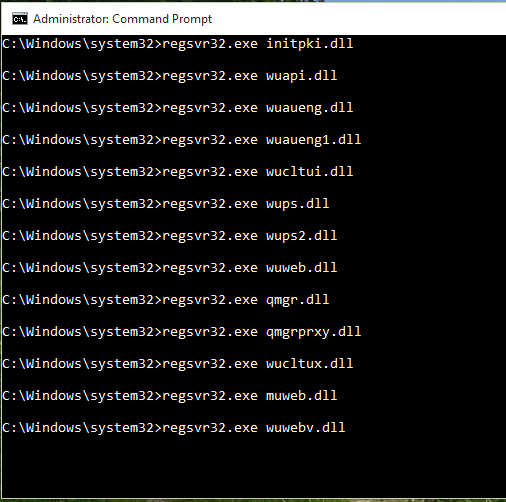
- You now have to enter the following commands in the command prompt:
- REGSVR32 WUPS2.DLL /S
- REGSVR32 WUPS.DLL /S
- REGSVR32 WUAUENG.DLL /S
- REGSVR32 WUAPI.DLL /S
- REGSVR32 WUCLTUX.DLL /S
- REGSVR32 WUWEBV.DLL /S
- REGSVR32 JSCRIPT.DLL /S
- REGSVR32 MSXML3.DLL /S
- You can also run this batch file as an administrator while making a right-click and selecting “Run as Administrator”.
- On the successful completion of the above process, you now have to reboot your PC and then try to run Windows Updates on your device again to check whether the issue has been resolved or not yet.
Solution 3: Turn the Automatic Updates
- Launch the Start Menu on your device.
- Now type the “Windows Update” option in the given section and then press the Enter button.
- Tap on the Change Settings option.
- Now go to the option mentioning Important Updates and then select Install Updates Automatically.
- Now, select the Give me recommended update options under Recommended Updates options.
- Press the OK button to confirm the same.
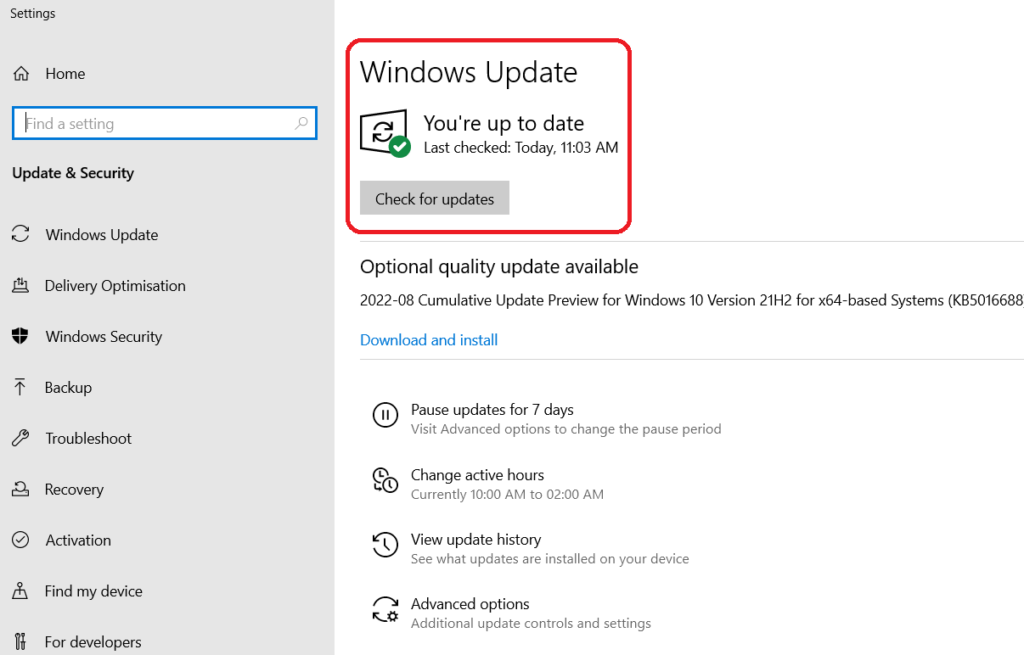
- Once done, try running Windows Update on your phone to check whether the issue has been resolved or not.
Solution 4: Rebooting Phone
Rebooting the Windows or phone can also serve to be a great help for rescanning for updates. It perfectly detects and removes the error 0x80080008 from your device.
FAQs: How to Fix Error 0x80080008 on Windows
What is error 0x80080008 on Windows?
It’s a Windows Update error caused by stopped services or corrupted update components. Example: updates fail to download or install.
What is the most common cause of error 0x80080008?
Windows Update services are not running properly. Example: Background Intelligent Transfer Service (BITS) is stopped.
Does restarting Windows Update services fix this error?
Yes, in most cases. Restarting services resets the update pipeline. Example: restarting BITS and Windows Update resolves the error.
Can corrupted system files cause error 0x80080008?
Yes. Damaged system files block update processes. Example: running System File Checker fixes missing files.
Does antivirus software cause this error?
Yes, sometimes. Security software can block update services. Example: temporarily disabling the antivirus allows updates to run.
Can resetting Windows Update components fix the issue?
Yes. Resetting clears corrupted cache and services. Example: renaming the SoftwareDistribution folder fixes repeated failures.
Will running the Windows Update Troubleshooter help?
Yes. It automatically detects and fixes common update problems. Example: troubleshooter restarts blocked services.
Is this error related to Windows Store issues?
Sometimes. Windows Update and Store share services. Example: Store updates fail along with system updates.
Does this error affect Windows 10 and Windows 11?
Yes. It appears in both versions. Example: users report the same error during cumulative updates.
When is a Windows reset required?
Only if all fixes fail. Example: in-place upgrade, repair, restores update functionality without data loss.
Conclusion
So, guys! Hopefully, you have perfectly gotten to know how to fix error 0x80080008 on Windows successfully.